Build
Header
Design your site header in Elementor, then control where it sits and how it behaves as visitors scroll.
Your header is a Global Block of type Header. Build it like any page, assign it once, and it appears everywhere.
Building a header #
- Create the blockGo to NovaSpark → Global Blocks → Create Block, name it, and set Section Type to Header.
- Publish, then open ElementorClick Publish, then Edit with Elementor.
- Lay out a rowAdd a Container set to horizontal, and put your logo, menu and buttons inside it.
- Add the piecesUse NovaKit Site Logo, NovaKit Menu and NovaKit Mobile Menu from the widget panel — they read your real logo and menus rather than needing to be filled in by hand.
- UpdateClick Update when you are happy.
Start from the library. Inside Elementor, the round NS button next to the offers ready-made headers you can insert and edit — usually faster than starting from nothing. See The NovaKit Library.
Assigning it #
Go to Theme Options → Header → Default Header and pick your block. That covers the whole site.
For a different header on part of the site, give a second header block Display Conditions — it takes over wherever its rules match. To change the header on one page only, use that page’s Page Settings box, which beats everything else.
Position and appearance #
In Theme Options → Header → Position & Appearance.
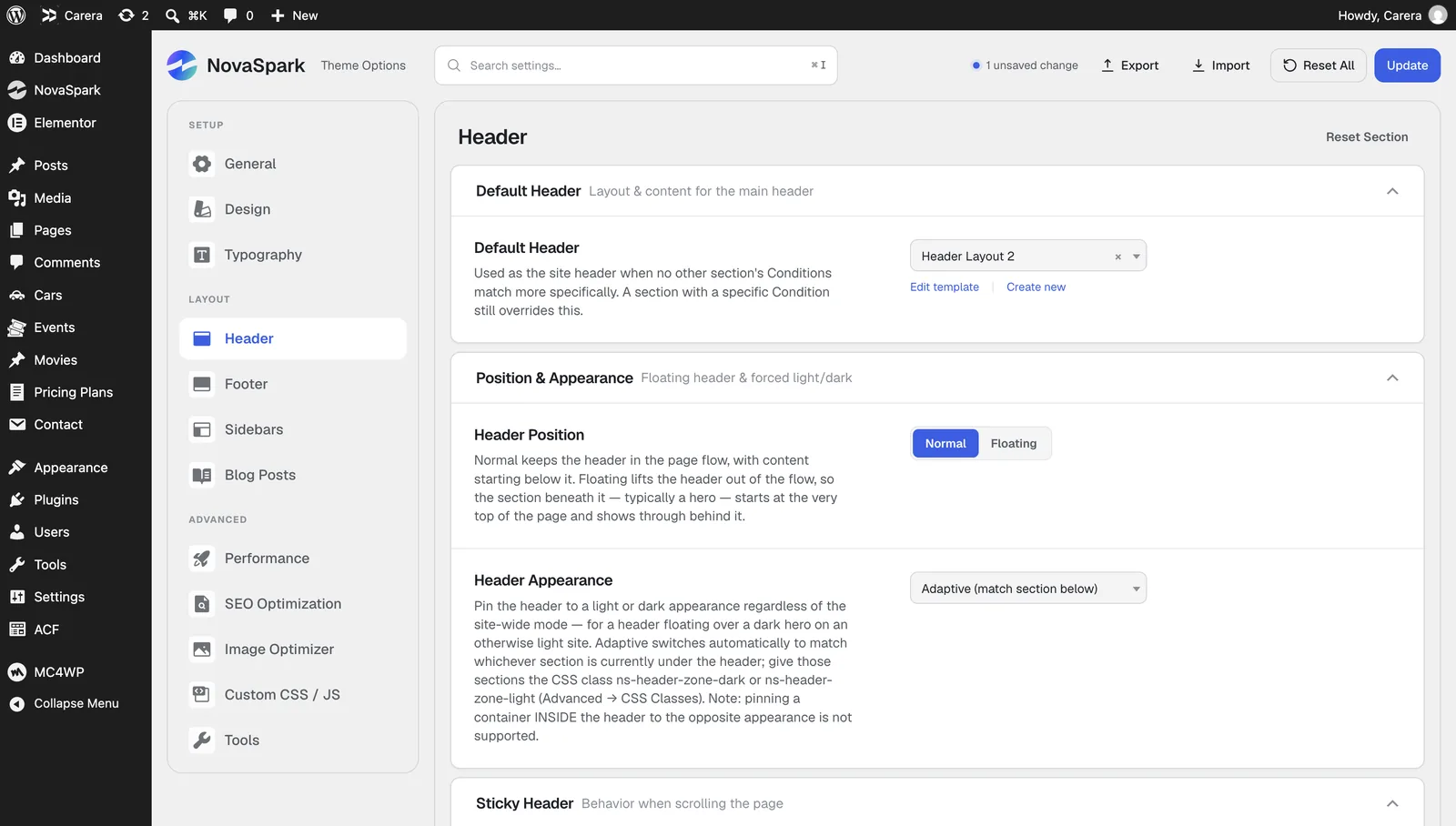
| Setting | What it changes |
|---|---|
| Normal | The header sits in the page flow, and content starts below it. |
| Floating | The header overlays the page, so a hero image runs up underneath it. Floating Top Offset sets the gap from the top; 0 sits flush. |
Header Appearance pins the header light or dark regardless of the site-wide mode:
| Auto | Follows the site’s light or dark mode. |
| Force Light / Force Dark | Always that appearance. |
| Adaptive | Matches whatever section is directly below it — so a dark hero gets a light header, and the header flips as the visitor scrolls past. |
Floating plus Adaptive is the combination worth knowing. It gives you a header that sits over a full-bleed hero and stays readable against it, without designing two headers.
Sticky behaviour #
Turn on Sticky Header to pin the header as visitors scroll. The rest of the section only applies once it is on.
| Setting | What it does |
|---|---|
| Sticky Offset | How far down the page before it pins. None pins immediately, Viewport after one screen, Custom after a distance you set (default 80px). |
| Reveal on Scroll Up | Hides the header while scrolling down and brings it back on the way up. Gives long pages more room. |
| Animation Type | How it arrives: None, Slide Down, Fade or Fade Blur. Duration defaults to 250ms. |
| Sticky Appearance | Light or dark while pinned — useful when the header is transparent at the top of the page but needs a solid look once it sticks. |
| Sticky Background | None keeps the design’s own background, Theme Background uses your site colour, Custom lets you set separate light and dark colours. |
| Sticky Backdrop Blur | Frosts whatever scrolls behind the pinned header. A few pixels is usually enough. |
The fallback header #
With no header block assigned, NovaSpark draws a plain built-in header — your site title and primary menu — so the site is never headless. Seeing it means no block is assigned, or none of your conditions match this page.
Developers can replace it by overriding
template-parts/fallback/header.php in a child theme.