Build
Display Conditions
Decide exactly where a Global Block appears, where it does not — without touching a single page.
A block with no conditions appears everywhere its type allows. Conditions narrow that down: this header on the shop, that popup only for logged-out visitors, this banner only until Friday.
You set them in the Display Conditions box while editing any Global Block.
What conditions do #
Each condition is one row: an action, a rule, and usually a value. Read a row as a sentence — Include · Single Post/Page · Contact means “show this on the Contact page”.
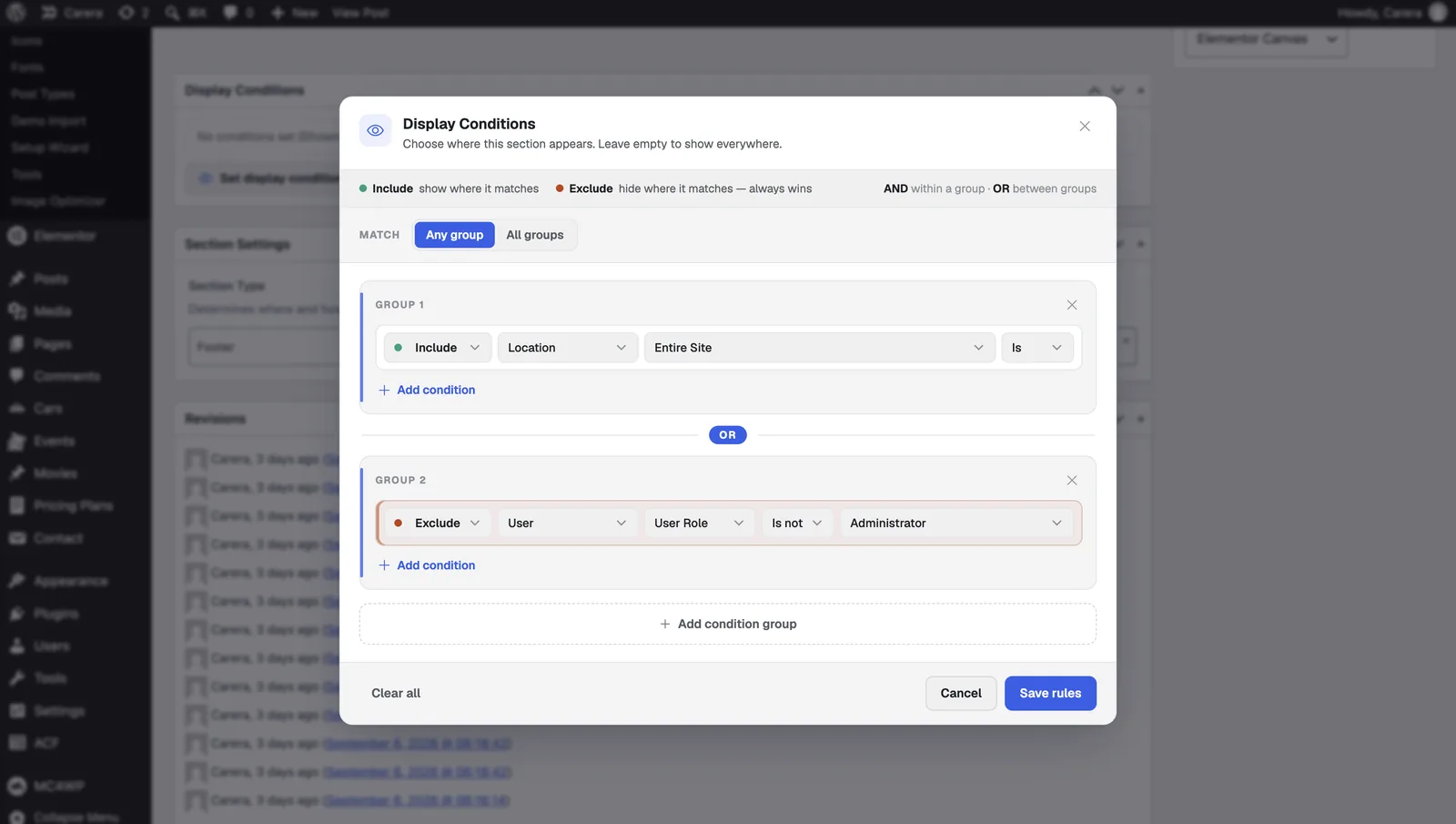
Rows are grouped. Within a group, every row must match. Between groups, any one group matching is enough. So one group is “and”, and adding a second group is “or”.
Include versus Exclude #
| Action | Meaning |
|---|---|
| Include | Show the block where this matches. |
| Exclude | Do not show it where this matches, whatever else says otherwise. |
Exclude always wins. A block that is included site-wide and excluded on the checkout page will not appear on checkout — you never need to reorder rows to get that.
The common shape is one Include for the broad case and one or more Excludes for the exceptions:
| You want | Set |
|---|---|
| Everywhere | No conditions at all. |
| Everywhere except the shop | Include Entire Site, Exclude the shop pages. |
| Only one page | Include Single Post/Page, and pick the page. |
| Only blog posts | Include Single Post/Page set to Posts. |
| Only for signed-in visitors | Include User, set to logged in. |
The nine rule types #
| Rule | Matches on |
|---|---|
| Location | Broad areas of the site — the whole site, the front page, search results, the 404 page. |
| Single Post/Page | A post type, or one specific post or page. |
| Post Type Archive | The listing page for a post type. |
| Taxonomy / Term | A category, tag or custom taxonomy — or one term within it. |
| Page Hierarchy | A page’s parent or children, so a whole branch can share a design. |
| User | Whether someone is signed in, and their role or capability. |
| Date & Schedule | A date range, so a block can appear and retire on its own. |
| URL Parameter | A query string in the address — useful for campaign landing variants. |
| Custom Field | The value of a custom field on the current post. |
When two blocks both match #
Only one header can be drawn, so if two headers both match, NovaSpark picks the more specific one. Specificity is counted like this:
| Condition | Counts as |
|---|---|
| No conditions at all | 0 |
| An Include rule | 1 |
| An Include rule naming one specific page or term | 11 |
| An Exclude rule | 0 |
So “on the Contact page” beats “on all Pages”, which beats a block with no conditions. That is usually what you want, and means you rarely have to think about it.
Excludes deliberately count as nothing. A block whose only conditions are Excludes stays tied with one that has no conditions — so your Theme Options default still wins the tie. Without that, adding an unrelated exclusion to a block would silently promote it over the default you actually chose.
Hiding one element, not a whole block #
Conditions place whole blocks. To show or hide a single element inside a design, use the NovaKit Display control instead. Select any Elementor element, open the Advanced tab, and find NovaKit Display.
Set a condition — by role or capability — and choose whether that means Show or Hide.
This is layout, not security. A hidden element is genuinely not rendered, so its content never reaches the page — but it controls who sees an element, not who may reach the page it sits on. Do not use it to protect private content; restrict the page itself.
Elements stay visible in the Elementor editor whatever their condition, so you can keep working on something that will be hidden for you on the live site.