Set up your site
Demo Import
Import a complete demo site — pages, designs, images and settings — then replace its content with your own.
A demo is a finished website: pages, menus, a header and footer, colours, fonts and images. Importing one gives you a working site to edit rather than a blank page to fill. You can import one during the Setup Wizard, or any time afterwards from the Demo Library.
The Demo Library #
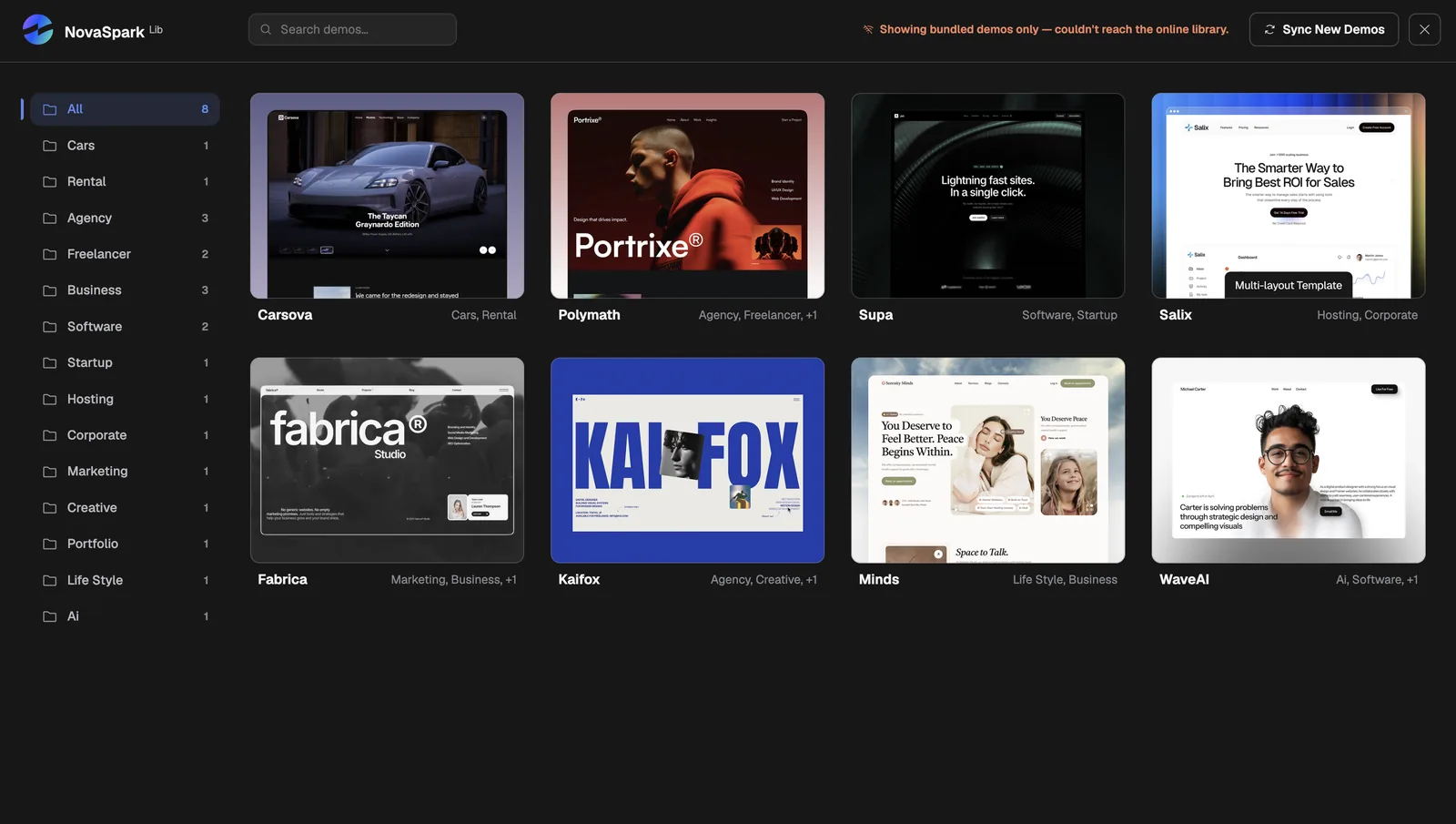
Go to NovaSpark → Demo Import. Every demo is shown as a card with a preview image. Filter by category or search by name.
The demos #
Eight demos are included. Every one is built the same way, so picking a different one later is only a matter of re-importing.
| Demo | Suits |
|---|---|
| Polymath | Agencies, freelancers, general business |
| WaveAI | AI products, software, freelancers |
| Supa | SaaS and software startups |
| Salix | Hosting and corporate |
| Fabrica | Marketing agencies |
| Kaifox | Creative agencies and portfolios |
| Minds | Lifestyle and business |
| Carsova | Car sales and rental |
You can preview them all at unistudio.co/demo/novaspark.
Before you import #
Turn on HTTPS first. The importer writes your site’s current address
into every imported image link. Import over http:// and enable SSL afterwards, and
browsers block those links on your now-secure pages — you get missing images and unstyled
sections, with nothing obviously wrong in the admin. Doing it in this order costs nothing.
Three more things worth doing:
- Use a fresh WordPress install if you can. Importing onto a site that already has content works, but you end up sorting demo content from your own.
- Take a backup if the site has anything you care about.
- Check Elementor and ACF are active. Without them the import brings in pages that cannot render and settings that cannot be stored.
What gets imported #
Five parts, each of which you can turn off. All are on by default.
| Part | Brings in | Turn it off when |
|---|---|---|
| Core Content | Pages, posts, custom post types, categories, tags and menus. | You only want the theme’s look, not its pages. |
| Elementor Designs | The layouts that make those pages look designed. | Essentially never — see the warning below. |
| Media Attachments | Every image and file the demo uses. | You are replacing all imagery anyway and want a faster import. |
| Theme Settings | Colours, typography, layout, logo, sidebar definitions. | You have already set up your own branding and do not want it overwritten. |
| Widgets | The widget instances inside those sidebars. | You do not use widget areas. |
Elementor Designs is not optional polish. Untick it and pages still import — but without the data that makes them Elementor documents. They render as unstyled text and open in Elementor as an empty canvas. If a demo imported and every page looks plain, this is almost always why.
Turning off Media Attachments leaves gaps. Pages still reference the images, so you get broken image placeholders until you put your own in. That is a reasonable trade if you are replacing all the imagery, and a confusing surprise if you are not.
Running an import #
- Pick a demoClick its card in NovaSpark → Demo Import.
- Choose what to bring inLeave all five parts ticked unless you have a reason not to.
- Start the importWatch the progress bar. A few minutes is normal; image-heavy demos on slow hosts take longer.
- Leave the tab aloneDo not close or reload it. See below.
Your browser is doing the work. Each stage of the import is a request this tab makes — there is no background job carrying it on. Close the tab and the import stops where it is. WordPress warns you before you leave.
Stopping is not the same as losing it. Every stage is checkpointed, so returning to the screen picks the import up where it stopped. If a stage errors, Retry replays just that stage — the importer tracks what it has already brought in, so retrying never duplicates anything.
Cancelling
Cancel stops the run and clears its temporary files. It does not remove what has already been imported — those pages, images and settings stay. To clear them, run a new import with Fresh Start turned on.
Fresh Start #
Fresh Start clears out a previous demo import before running a new one. Without it, importing a second demo leaves you with both — duplicate pages, duplicate images, duplicate menus.
What it removes is narrower than it sounds. It only deletes content that a NovaSpark demo import created. Your own posts and pages, your WooCommerce products, and WordPress’ default content are never touched.
It cannot be undone. Deleted items are removed permanently, not moved to the trash, and cancelling the import afterwards does not bring them back. If you have edited anything that came from a previous import and want to keep it, back up first.
On a large previous import this stage takes a while — it deletes in small batches so it cannot time out. The progress bar counts down as it goes.
When something goes wrong #
An import that finishes with problems says Your site is READY — With Notes rather than failing outright. Expand the notes to see what was skipped.
Notes are grouped by cause, not listed per item, so a hundred images that failed for the same reason read as one line with a count. There is also a copy-and-paste summary of your setup — include it if you contact support, as it answers most of the questions we would otherwise ask.
| Symptom | Usual cause |
|---|---|
| Pages imported but look plain and unstyled | Elementor Designs was unticked, or Elementor is not active. |
| Pages are completely blank | Elementor’s Atomic Widgets are switched off. See Requirements. |
| Images missing, sections unstyled, only on the live site | Imported over HTTP, then SSL was enabled. See Before you import. |
| Import stops partway with no error | The tab was closed or reloaded. Reopen the screen — it resumes. |
| Some images did not import | They could not be downloaded. Usually a slow host or a timeout; retrying often clears it. |
| Colours and fonts are wrong | Theme Settings was unticked, or Advanced Custom Fields is not active. |
| Two of everything | A demo was imported twice without Fresh Start. |
Nothing looks right and you want to start over? Run the import again with Fresh Start on. That clears the previous attempt and imports cleanly, which is almost always faster than unpicking a half-finished import by hand.