Build
Cookie Consent (GDPR)
A cookie popup that actually holds tracking back until a visitor agrees, and how to build one.
A popup asking about cookies does nothing by itself: without more, tracking has already run by the time anyone reads it. NovaSpark holds those scripts back, and only runs the ones a visitor agrees to.
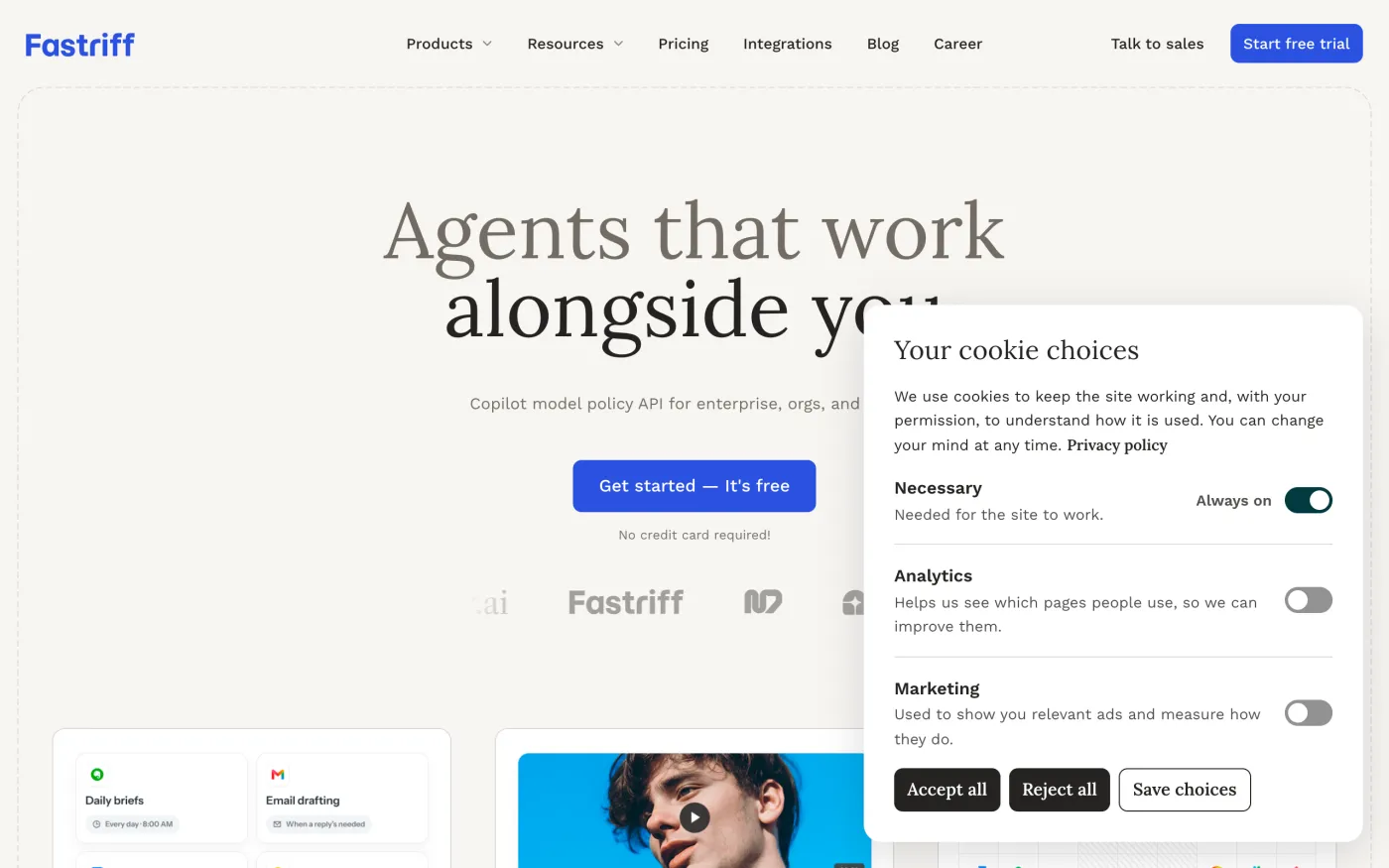
This helps you meet GDPR. It does not make a site compliant by itself. Anything in Header Scripts, another plugin or an embedded video or map runs regardless, unless you hold it back too. Your policy wording is yours to get right. A visitor’s choice is kept only in their own browser, so if you need a record of consent, check that with your adviser.
How it works #
| A visitor… | What happens |
|---|---|
| Has not chosen yet | The popup opens, ahead of any other. Nothing that waits for consent has run. |
| Accepts or saves a category | Its scripts run straight away, with no reload, and on every page after that. |
| Rejects | Nothing runs, and the popup stays away. |
| Closes it without choosing | Nothing runs, and it asks again on the next page. |
| Changes their mind | The page reloads without the scripts, because a script that has run cannot be stopped. |
Choices are kept in a first-party cookie called nk_consent and read in the browser, so page caching
works normally.
Step 1: Move your scripts #
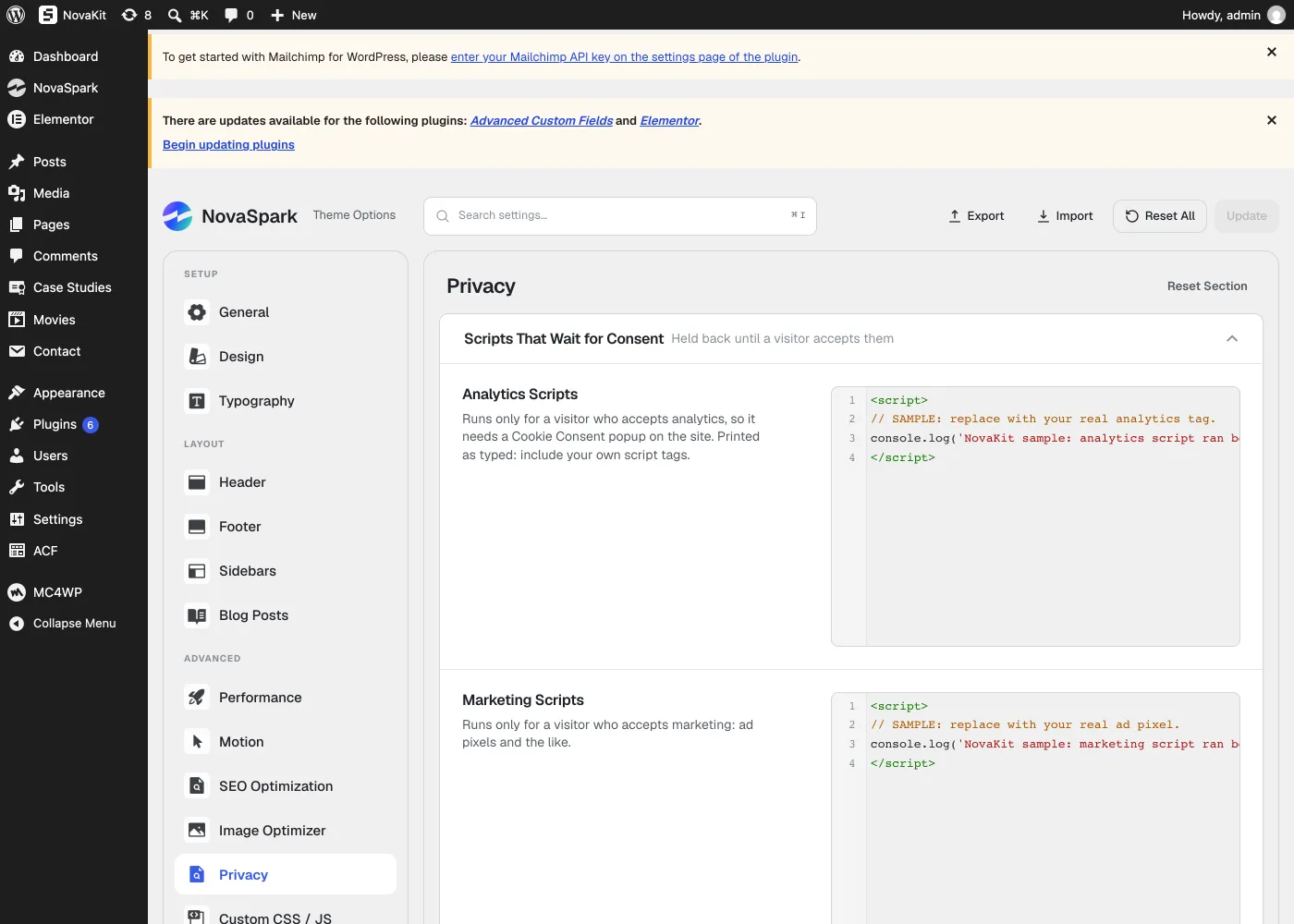
Go to NovaSpark → Theme Options → Privacy. Paste your analytics tag into
Analytics Scripts and any ad pixels into Marketing Scripts, with their
<script> tags, exactly as the provider gives them. Then delete them from Header Scripts,
or wherever they were, or they will still run for everyone.
| Setting | What it does |
|---|---|
| Policy Version | Change it when your cookie policy changes, and everyone is asked again. |
| Remember a Choice For | Days before a visitor is asked again. 180 by default. |
| Google Consent Mode | Tells Google tags what a visitor agreed to, starting from denied. Turn it on if you use Google Analytics or Google Ads. |
Step 2: Create the popup #
- Create the blockGlobal Blocks → Create Block, with Section Type set to Popup, then open it in Elementor.
- Make it the consent popupClick the settings icon in Elementor’s top bar, open Popup: Opening, and turn on Cookie Consent Popup. It now opens for anyone who has not chosen, so the other triggers and Who & How Often disappear. Set Delay to ask a few seconds after the page loads. Nothing that waits for consent runs in the meantime, and other popups wait too.
- Place itIn Position & Size, a corner or bottom bar suits this well. For the example above: Bottom Right with a Max Width of 460px, and Bottom Bar on mobile.
- Turn the overlay offIn Popup: Overlay, so the page stays usable behind it.
- Decide how it closesTurn off the button in Popup: Close Button and Esc in Popup: Closing if you want a clear choice. Closing without choosing grants nothing either way.
Step 3: Add the choices and buttons #
- Write the messageA Heading and a Paragraph saying what you use cookies for, with a link to your privacy policy.
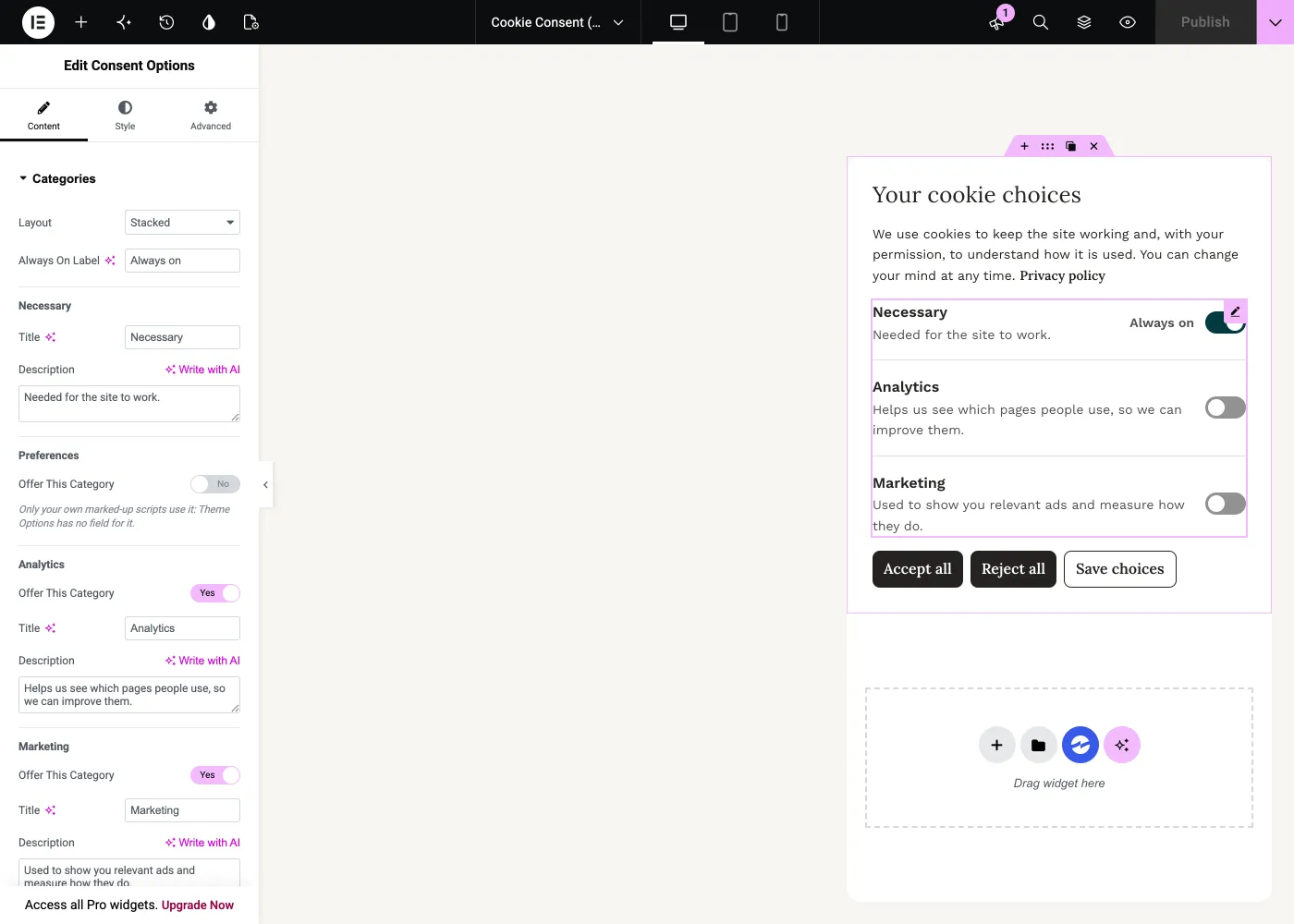
- Add Consent OptionsDrag in the Consent Options widget. It lists the categories with a switch each, never ticked in advance. Necessary has no switch, just the words Always Active.
- Add three buttonsThree Trigger widgets, or any button with its Trigger action set: Cookies: Accept All, Cookies: Reject All and Cookies: Save Choices.
- Publish
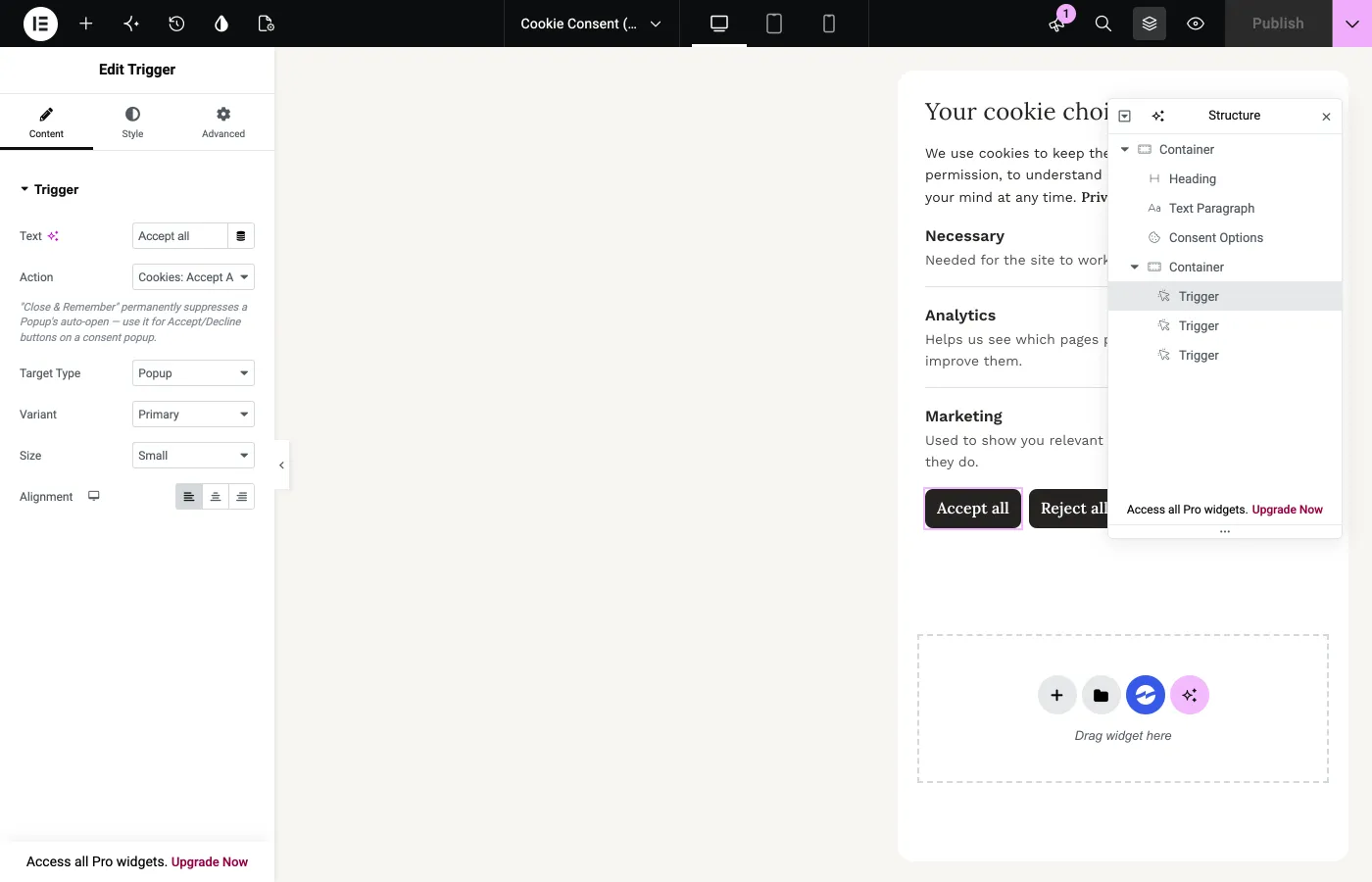
Make Reject as easy as Accept. Regulators look for this. Give both the same style, as the example does, and keep them next to each other. Save Choices is what applies the switches, so always include it beside them.
The Consent Options widget
| Setting | What it does |
|---|---|
| Layout | Stacked shows descriptions. Accordion folds them away behind an arrow on each title, which suits a long list. Compact shows titles only, for a bottom bar. |
| Necessary | Always shown, with Always On Label where a switch would be: a visitor is told about it, not asked. |
| Analytics, Marketing | Offered by default, matching the two fields in Theme Options. |
| Preferences | Off by default. Only scripts you mark up yourself use it. |
| Style tab | Row spacing, dividers, text, the switch’s size and colours for light and dark mode, and the Accordion arrow. |
The categories are fixed, because each has to match the scripts waiting on it. You can rename them freely.
Or two popups: a banner and its preferences
Many sites ask with a short banner, and keep the switches one click away. For that, build two popups:
- The bannerThis is the popup from Step 2, with Cookie Consent Popup on and no Consent Options widget. Give it a message and three buttons: Cookies: Accept All, Cookies: Reject All and Cookies: Open Settings.
- The preferencesA second popup, usually centred with an overlay, holding the Consent Options widget and its buttons, including Cookies: Save Choices. Leave Cookie Consent Popup off: NovaKit recognises it by the widget inside.
- Show both everywhereGive the two popups the same Display Conditions, so the banner’s button always has something to open.
The banner steps aside while the preferences are open. If the visitor closes them without choosing, it comes back. Any choice closes both.
Step 4: Let visitors change their mind #
GDPR asks that withdrawing consent be as easy as giving it. Add a Cookie Settings link to your footer: on a Trigger widget or any link, set the action to Cookies: Open Settings. It opens the popup holding the switches, showing what the visitor last chose.
Check that it works #
- Open a private windowSo you start as a new visitor.
- Before choosingOpen the browser’s developer tools. On the Network tab, your analytics and ad requests should not appear.
- Accept or saveThey should appear straight away, without a reload.
- Start againDelete the
nk_consentcookie, or open a new private window.
| You see | Likely cause |
|---|---|
| The popup never opens | You have already chosen in this browser, Cookie Consent Popup is off, or its Display Conditions rule out this page. |
| Tracking runs before anyone chooses | The script is still in Header Scripts, in another plugin, or in the page itself. |
| Scripts never run, even after accepting | Check the field is the right category, and that the script has its own <script> tags. |
| Cookies: Open Settings opens the banner, not the preferences | The preferences popup is not on this page: check its Display Conditions, and that it holds the Consent Options widget. |
| Save Choices saves everything off | The Consent Options widget is not in the same popup as the button. |
Holding back your own scripts #
Anything you add to a page can wait for consent too, using the category preferences,
analytics or marketing.
| To hold back | Write |
|---|---|
| A script | <script type="text/plain" data-nk-consent="analytics">…</script> |
| An embed | <iframe data-nk-consent="marketing" data-src="https://…"></iframe> |
Developers can read the choice with window.nkConsent.has( 'analytics' ), open the popup with
window.nkConsent.open(), and listen for the nk:consent event on document.