Maintain
Tools & Image Optimizer
Back up your settings, reset a tab, take the site offline, and compress your images.
Tools gathers the housekeeping. Some of it is destructive, so the last section lists exactly what can and cannot be undone.
Export and import settings #
At Theme Options → Tools → Export / Import. Export writes every Theme Options value to a file; import reads one back.
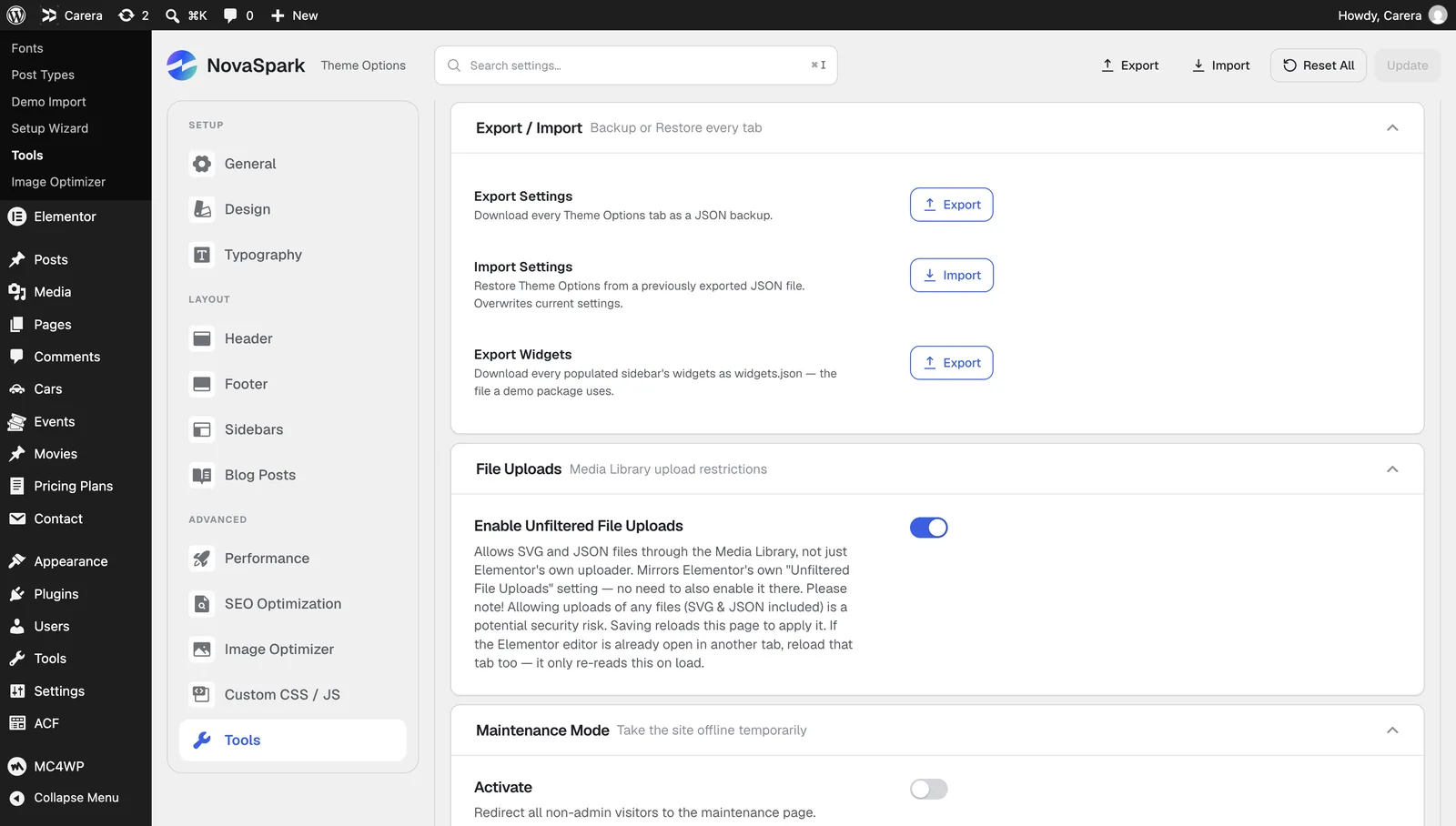
- ExportClick Export and save the file somewhere safe.
- ImportOn the other site — or the same one later — choose the file and import it.
- Check the resultOpen a page and confirm the colours and fonts came through.
Export before anything irreversible. Before applying a design preset, before resetting a tab, before importing a demo onto a configured site. It takes a second and is the only undo this screen has.
An export carries settings only — not your pages, posts, images or Global Blocks. Those are content, and move with a normal WordPress export.
NovaKit UI Appearance
| Setting | Default | Accepts |
|---|---|---|
| Admin Color Scheme | Auto | Auto, Light, Dark |
File Uploads
| Setting | Default | Accepts |
|---|---|---|
| Enable Unfiltered File Uploads | Off | On or off |
Maintenance Mode
| Setting | Default | Accepts |
|---|---|---|
| Activate | Off | On or off |
| Maintenance Page | — | A page |
Resetting #
Each Theme Options tab can be reset to its defaults, and there is a reset for all of them at once.
A reset cannot be undone. There is no confirmation beyond the button itself and no way back except an export you made earlier.
Admin appearance #
NovaKit UI Appearance switches NovaSpark’s own admin screens between light and dark, or lets them follow your system. It affects only NovaSpark’s screens — the rest of wp-admin keeps whatever WordPress colour scheme you use.
File uploads #
Enable Unfiltered File Uploads lets administrators upload file types WordPress normally blocks, SVG among them.
Leave this off unless you need it. WordPress blocks those types because an SVG can carry scripts. Only turn it on if you upload SVGs yourself, from files you trust, and turn it back off afterwards. Never leave it on for a site with untrusted contributors.
Maintenance mode #
Shows a holding page to visitors while you work. Signed-in administrators still see the real site, so you can keep building.
- Build a holding pageAn ordinary page — a logo and a sentence is plenty.
- Select itSet it as the Maintenance Page.
- Turn it onSwitch Activate on and save.
- Check itOpen the site in a private window to see what visitors see.
Remember to turn it off. Because administrators are exempt, a site left in maintenance mode looks perfectly normal to you and closed to everyone else.
Image Optimizer #
Compresses the images in your Media Library, and can convert them to modern formats. Images are usually the biggest thing on a page, so this is the single largest speed win available.
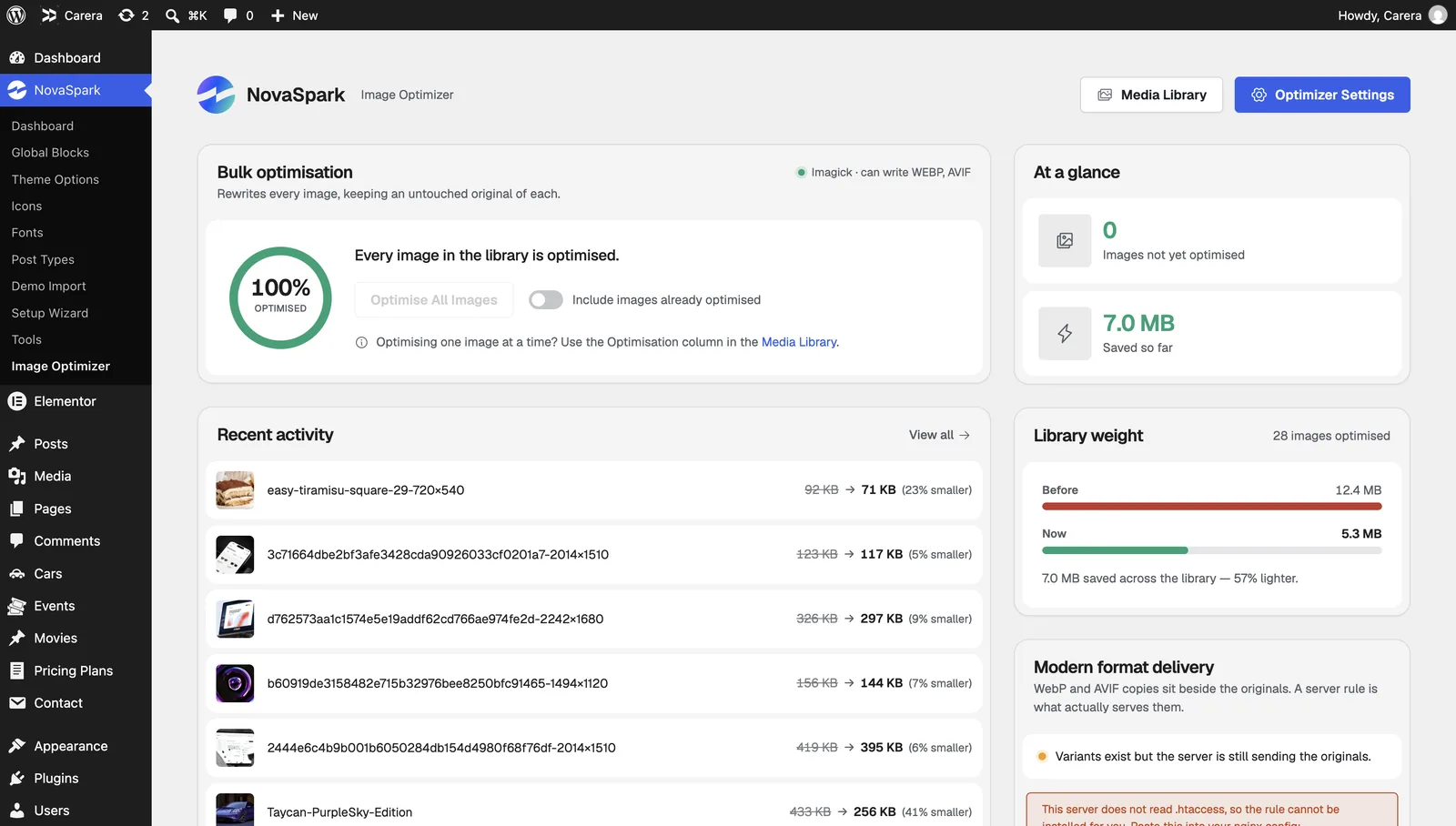
Settings are at Theme Options → Image Optimizer; the tool that runs them has its own screen at NovaSpark → Image Optimizer.
Optimization Settings
| Setting | Default | Accepts |
|---|---|---|
| Optimize New Uploads | Off | On or off |
| Convert To | WebP | Keep original format, WebP, AVIF (smallest, slowest to encode) |
| Compression Mode | Balanced — best size for the quality (recommended) | Balanced — best size for the quality (recommended), Visually Lossless — no visible change, True Lossless — pixel-identical, Maximum — smallest files, some quality loss, Custom — set the level yourself |
| Compression Level | 82 | 40–100 |
| Resize Larger Images | 2560px | 0–8000px, in steps of 10 |
| Remove Metadata | On | On or off |
| Back Up Originals | On | On or off |
Running it
- Check the settings firstEspecially Back Up Originals. It is what makes the whole thing reversible.
- Open the screenNovaSpark → Image Optimizer, which shows how much of your library is done.
- StartIt works in batches with a progress ring. Leave the tab open.
- Check your siteLook at a few image-heavy pages afterwards.
You can stop a run at any time; images already processed stay processed. Individual images can also be optimised or restored one at a time from the Media Library.
Back Up Originals is the undo. With it on, every original is kept and Restore puts it back. With it off, optimising rewrites your files with no way back. Leave it on until you are sure you are happy.
What is destructive #
| Action | Reversible? |
|---|---|
| Export settings | Nothing changes. |
| Import settings | Overwrites current values. Only if you exported first. |
| Apply a design preset | Overwrites Design and Typography. Only if you exported first. |
| Reset a tab, or all tabs | No. |
| Reset post views | No. |
| Optimise images | Yes, with Back Up Originals on. Otherwise no. |
| Restore images | That is the undo. |
| Drop image backups | No — and it removes the only way to undo an optimisation. |
| Maintenance mode | Yes, switch it off. |
| Unfiltered uploads | Yes, switch it off — files already uploaded stay. |
| Fresh Start on a demo import | No. See Demo Import. |