Build
Content & assets
Custom post types, widget areas, icon sets and fonts — the content and assets your designs draw on.
Four small managers, all under the NovaSpark menu. Each adds something your designs can then use.
Post Types #
WordPress ships with Posts and Pages. A custom post type adds another kind of content with its own admin section — Portfolio, Services, Team. NovaSpark creates them without code.
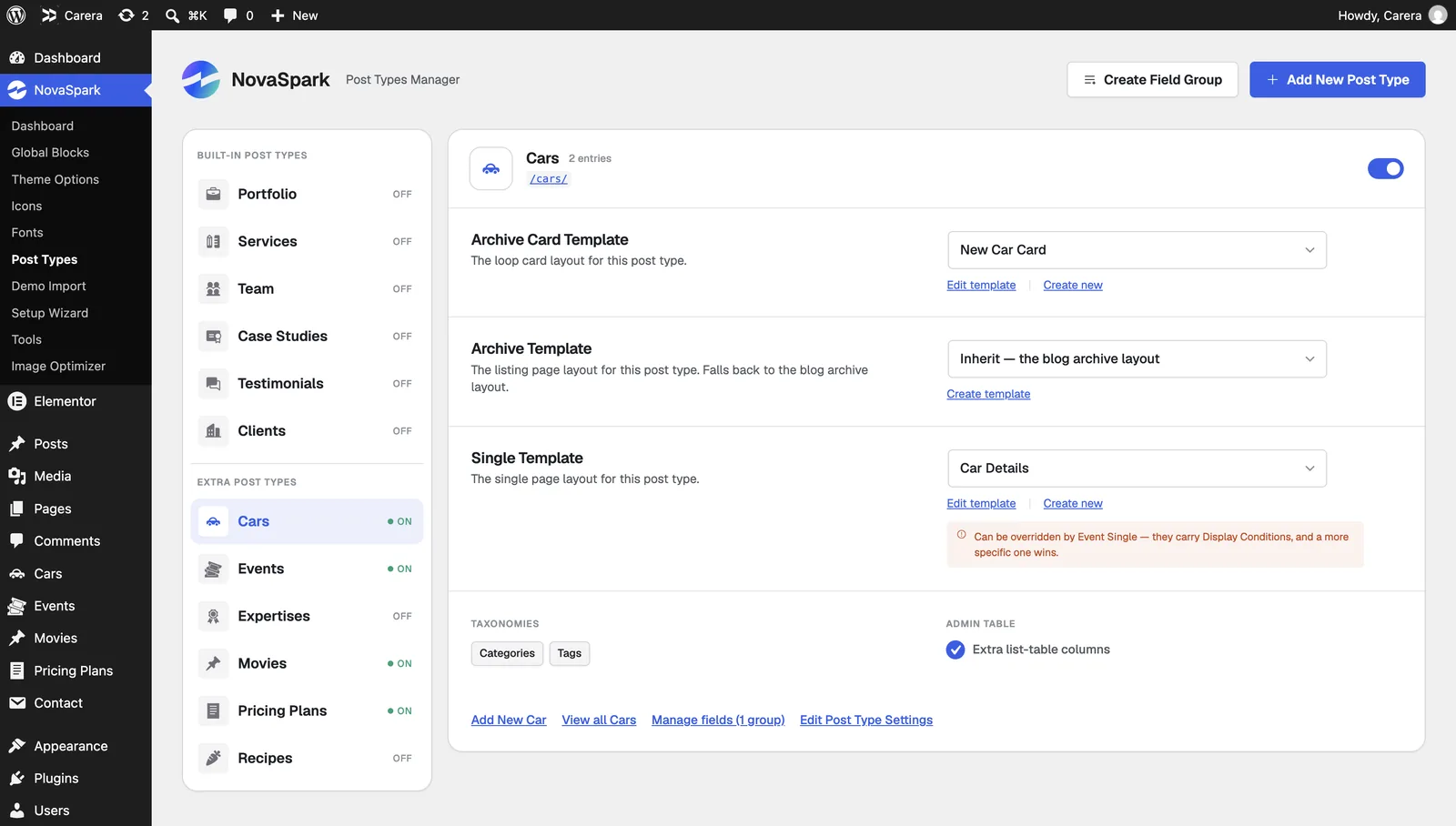
Go to NovaSpark → Post Types. Six presets are ready to switch on:
| Preset | Comes with |
|---|---|
| Portfolio | Project Categories and Project Tags, plus fields for Client, Project URL, Completed date and a Gallery. |
| Services | Service Categories, plus Icon Class, Short Summary and Price From. |
| Team | Departments, plus Role, Email and LinkedIn URL. |
| Case Studies | Industries and Company Profiles, plus its own fields. |
| Testimonial | A simple type used by the testimonial widgets. |
| Client | For logo strips and client listings. |
- Open the managerNovaSpark → Post Types.
- Switch a preset onIts admin menu entry appears immediately, with its taxonomies and starter fields.
- Add contentThe new type behaves like Posts — title, editor, featured image, excerpt, and Elementor.
- Show it on the siteUse NovaKit Smart Loops and point it at your new type.
Turning a type off hides it, it does not delete it. Its posts stay in the database and reappear if you switch it back on. That is deliberate — but it also means switching one off is not a way to clean up.
Sidebars #
A sidebar is a WordPress widget area — a region someone can fill from Appearance → Widgets without opening Elementor. Useful when a client maintains part of the site.
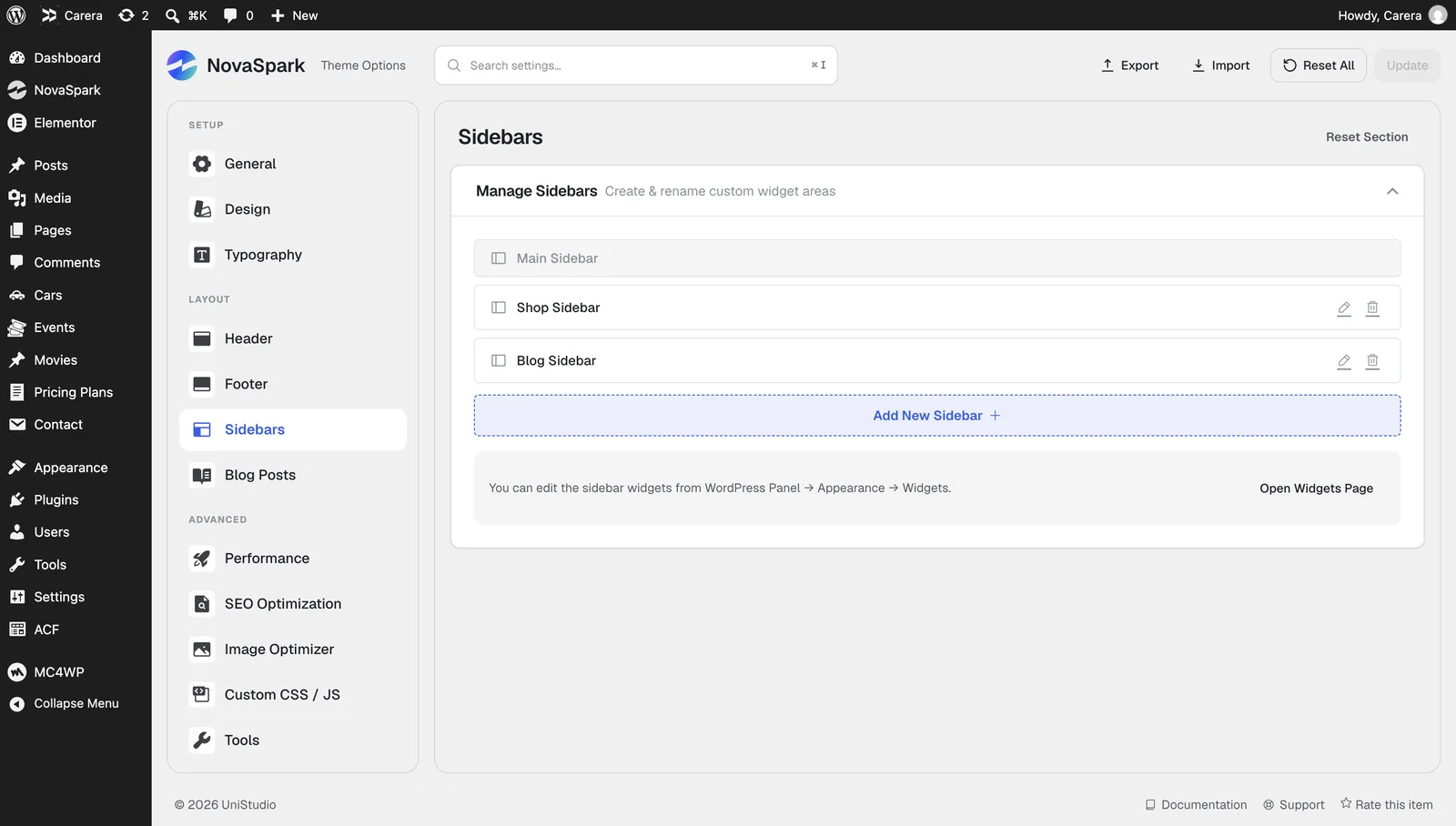
- Open the managerNovaSpark → Theme Options → Sidebars.
- Add oneClick add, and give it a name you will recognise.
- Fill itAt Appearance → Widgets, drop widgets into it.
- Place itUse Elementor’s own Sidebar widget and choose yours, or set a blog sidebar at Theme Options → Blog Posts → Sidebar Layout.
Sidebars can be renamed and deleted from the same screen. The default sidebar that ships with the theme cannot be deleted, since layouts fall back to it.
Icons #
NovaSpark → Icons. Three sets are included:
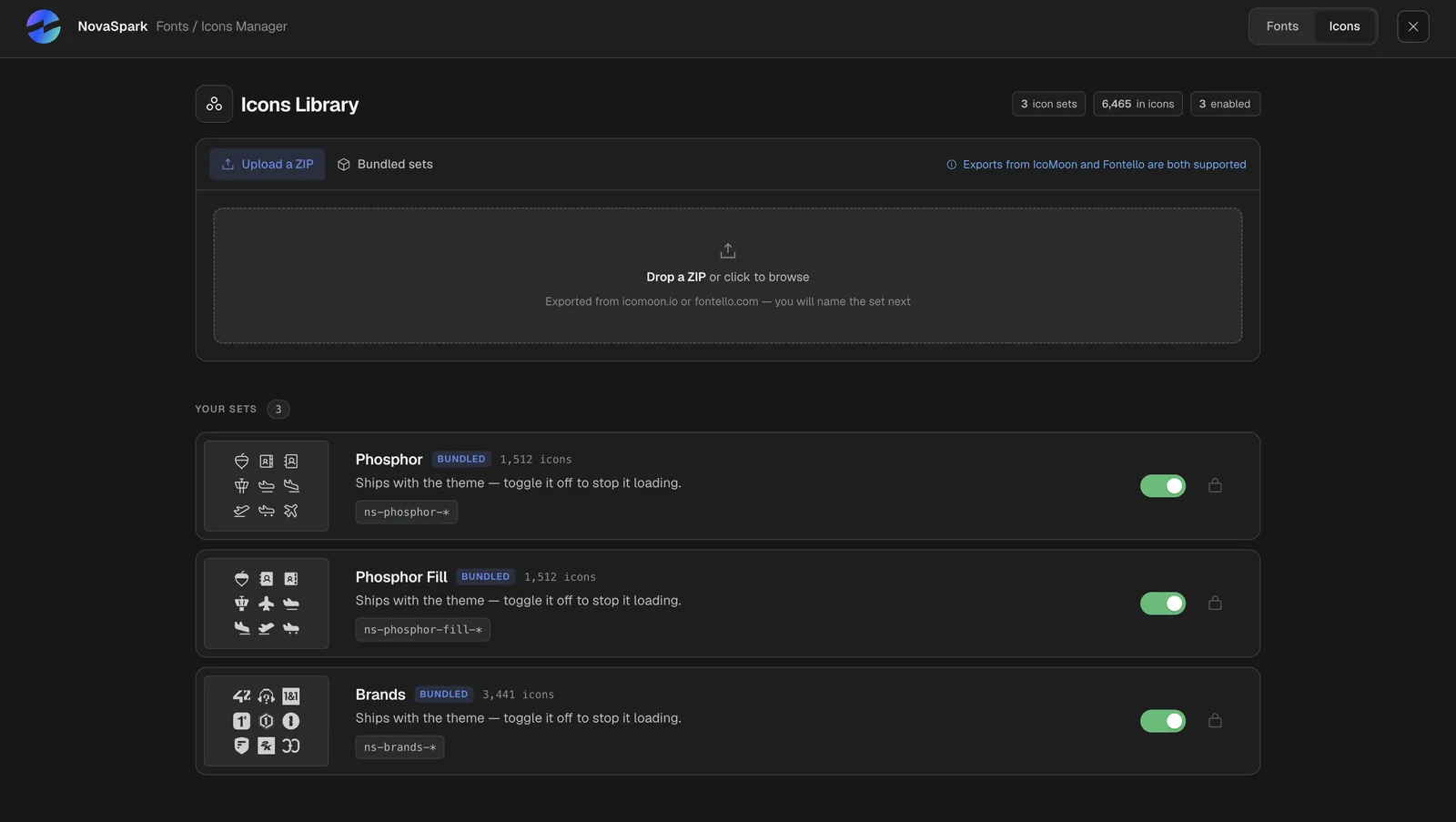
| Phosphor | Outline icons. The default. |
| Phosphor Fill | The same icons, solid. |
| Brands | Company and social logos. |
Each set has a switch. Turning off a set you do not use means its font is never loaded, which makes pages a little lighter.
Uploading your own
You can add an icon set exported from IcoMoon or Fontello.
- Build your setAt icomoon.io or fontello.com, pick your icons and download the font.
- Upload it unchangedOn the Icons screen, choose Upload and select the ZIP exactly as you downloaded it.
- Use itThe icons appear in Elementor’s icon picker alongside the built-in sets.
Upload the ZIP as downloaded. NovaSpark reads the manifest inside it —
selection.json from IcoMoon, config.json from Fontello — to learn
the icon names. Unzipping and rezipping usually loses it. Maximum size is 20 MB.
Fonts #
NovaSpark → Fonts manages three sources: system fonts, Google Fonts, and font files you upload.
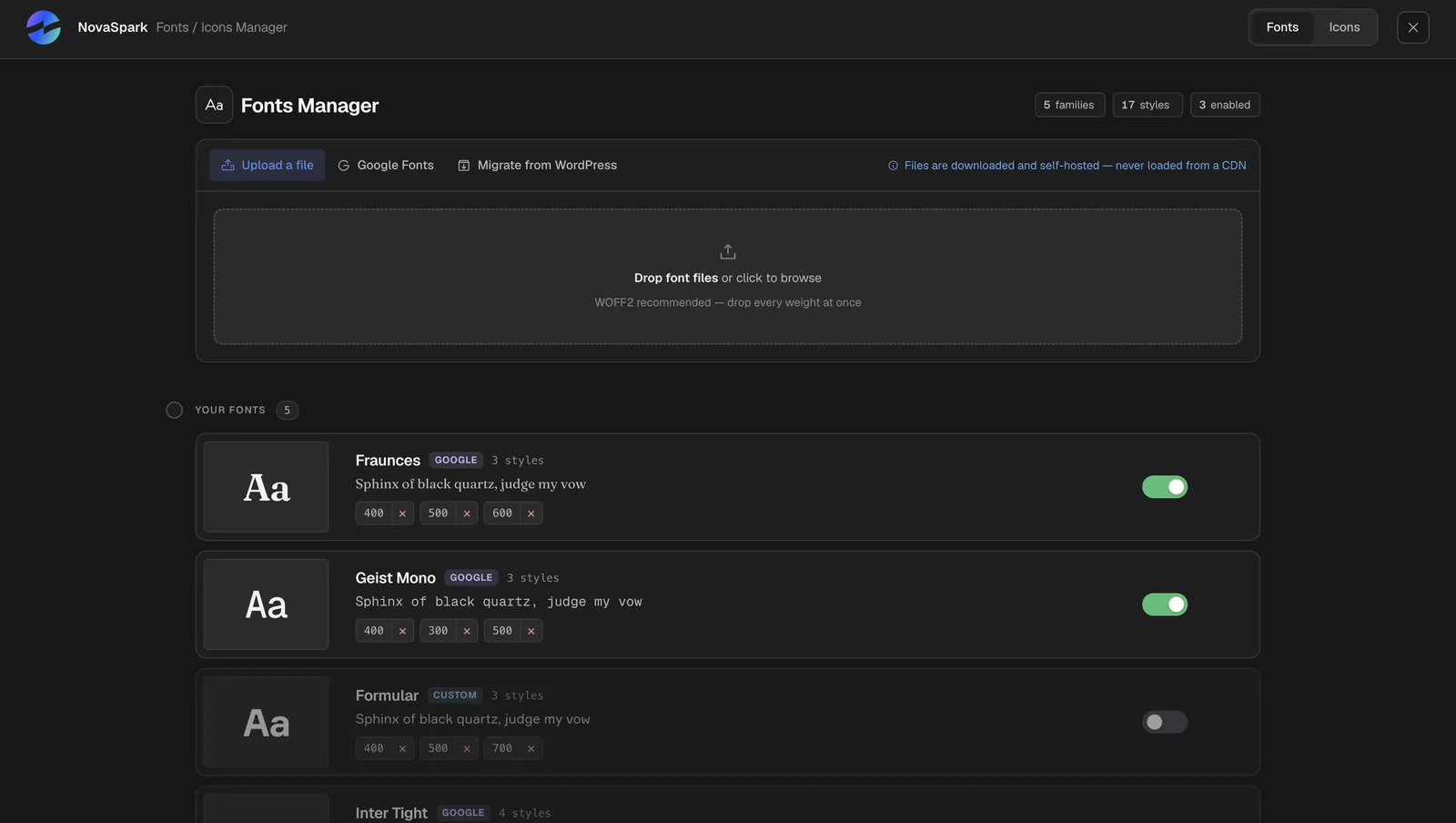
Google Fonts
Search the Google library from the Fonts screen and add what you need. Added fonts are served from your own site rather than from Google, which is both faster and simpler for privacy rules.
Uploading your own
- Add a familyOn the Fonts screen, choose to add a custom font and name the family.
- Upload each weightAdd a file per weight and style — Regular 400, Bold 700, and italics if you have them.
- Use itThe family appears in Typography and in Elementor’s font list.
| Accepted formats | WOFF2, WOFF, TTF, OTF |
| Maximum file size | 10 MB per file |
| Weights | 100 to 900 |
| Styles | Normal and italic |
WOFF2 if you have it. It is the smallest format every current browser understands. Upload the others only if your foundry did not supply WOFF2.
Font roles
Rather than choosing a font on every element, NovaSpark uses five roles. Set which family fills each at Theme Options → Typography → Font Roles:
| Heading | All headings. |
| Body | Paragraph text. |
| Secondary | Supporting text — captions, labels. |
| Display | Oversized statement type. |
| Mono | Code and figures. |
Each role also appears in Elementor’s font list as NovaKit Heading, NovaKit Body and so on — pick those in a design and swapping the underlying font later changes every element at once.